Cloud Services User Manual
DCI DigiGuide 2026.03.13


Before You Start

The myDCI portal is where you can register your equipment, activate warranties, and track software updates.
You can also purchase, manage, and assign your DigiTrak subscriptions to equipment to gain additional features.
Some features require that you are logged into a DCI App with a current subscription.
- In the TeraTrak R1 App, you need a current subscription for your R1 to create and share complete bore plans and to exceed the 150-foot limit between waypoints. For more information, go to the TeraTrak R1 manual.
- In the DigiTrak LWD (Log While Drilling) App, you need a personal myDCI account and a current subscription for the locator to store and retrieve logs and to create PDF reports. For more information, go to the DataLog and DigiTrak LWD manual.

If you do not have a myDCI user account, contact your myDCI administrator. If you are an owner and do not have a myDCI account for your company, go to the myDCI portal and create one.
Go to https://mydci.digital-control.com. Enter your e-mail address and password.

If you have updated the LWD App on your device or computer, you may get a message that your sign in has been redirected. Click "Continue" to log into myDCI with your current credentials.
In areas of poor mobile phone service or if you want to transfer data to your mobile device without logging in, tap "Continue" without signing in.
If log in is unsuccessful, the app will provide an option to help with a forgotten password.
Before You Start
If you are not an owner or administrator for your company, contact your company's myDCI administrator for an invitation to join myDCI.
The myDCI portal has three user roles: Owner, Manager, and User * with different levels of access.
The owner role is automatically assigned to the person creating the myDCI account. After the account is activated, additional people can be added to the account.
For more information about permissions and roles, go to the article, "Invite people to myDCI".
Go to https://mydci.digital-control.com and select Create new account.
Select Add your company.
Follow the prompts to create your account.
- Enter your company information.
- Add your name and contact information, and then select a password.
- Select your system preferences and language.
- Review the legal notice. When you scroll to the end, Accept and Continue.
Enter a valid email address or you will not be able to activate your account.
Check your email for a message from myDCI. Follow the instructions to activate your account.
You may need to check your spam folder for the myDCI account activation email.
Users can view subscriptions, equipment, and job data, and download DCI Apps.
Managers and Owners can also update subscriptions, equipment, and payment methods. They can also add, invite, or remove people.
Owners can also delete the company account, which will also cancel all subscriptions, remove access to data stored in the cloud, and delete all people. At least one owner is neededfor the company.
Things You Should Know
- You must have an owner or manager account to add or update equipment records.
- Select an item from the equipment list to view or edit its details or assign a subscription to it.
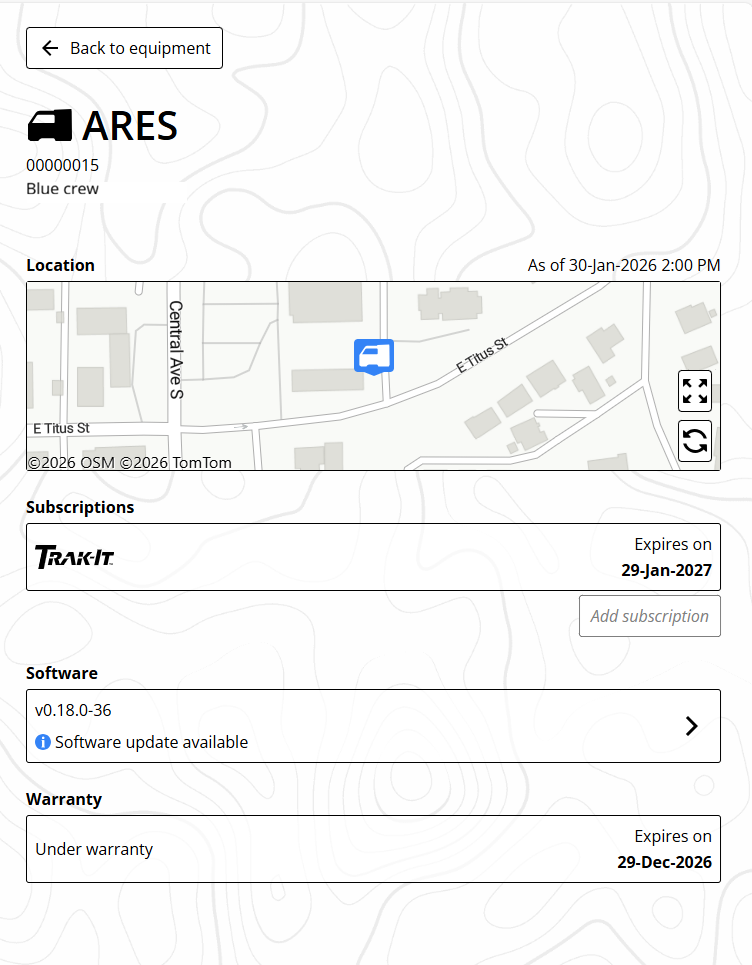
- Equipment details
- Name, model, serial number, and friendly name
- Options
- Rename this piece of equipment
- Report equipment as stolen (Ares locators only, subscription required) Go to the article, "Track your Ares locator or mark as stolen" for more help.
- Delete equipment
- Subscriptions
- Assigned to a specific piece of existing equipment. Go to the article "Manage subscriptions on myDCI" for more help.
- If you remove equipment with an active subscription, the subscription can be reassigned to another compatible item.
- Software (Ares locators only)
- The current software version and notice of any software updates. You cannot update a locator remotely. Go to the article in the Ares manual, "Update the Ares locator software over Wi-Fi" for more information.
- Warranty
- Track your warranty expiration date
Go to https://mydci.digital-control.com, and then on the left pane, select Equipment.
- If this is your first piece of equipment, select the big button to add it.
- To add additional equipment, in the Equipment summary box, select +Add new.
In the upper right corner, select +Add Equipment.
- or -
On the List tab, select equipment to view or update it (identified by brand, model, and serial number).
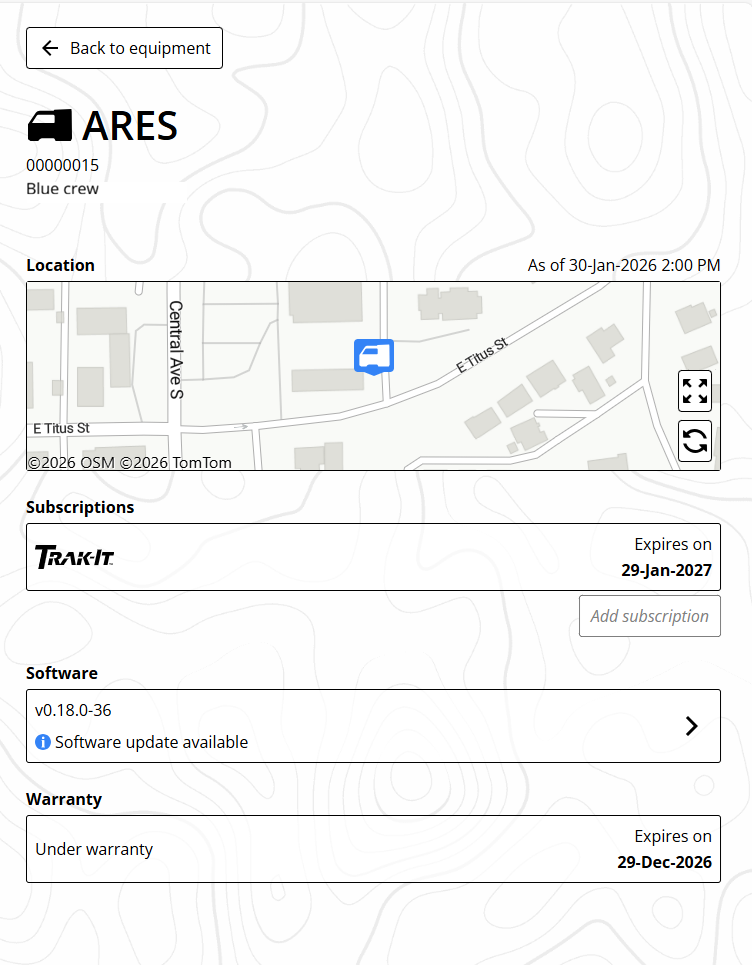
Back to equipment - Powrót do sprzętu
Location - lokalizacji sprzętu
Subscriptions - Subskrypcje
- Expires on - Wygasają w
Software - oprogramowaniu
- Software update available - Dostępna aktualizacja oprogramowania
Warranty - Gwarancja
- Under warranty - Na gwarancji
- Expires on - Wygasa
Enter the serial number and give it a unique name. This will make it easier to identify later. For example, "Blue Crew."
Enter the purchase date of the equipment and the dealer to determine the warranty status.
After information provided is validated, you will get the success message with the warranty information.
- If a related subscription is available for this equipment type, you can purchase it now and assign it to this piece of equipment. For more information on subscriptions, go to the Manage subscriptions on myDCI article.
- You can Add more equipment.
- Click Close to view the Equipment details page.
If you do select a subscription for this equipment, don't forget to go to the cart and complete the purchase.
Unless you purchase a subscription at the same time as adding the equipment, you will not receive a confirmation message.
Things You Should Know
DCI Subscriptions offer additional features and services to DigiTrak equipment. For example, an R1 subscription is required for extended bore planning and an LWD Cloud subscription is required for LWD data cloud storage.
- A subscription is assigned to a specific piece of equipment. You can add equipment before buying a subscription from the Equipment.
- If you remove equipment with an active subscription, the subscription can be reassigned to another compatible item. Go to the article "Add equipment to myDCI" for more help.
- Subscriptions are set to auto-renew so that you never lose access to your data or subscription features. To turn off auto-renewal go to the Subscriptions and select Cancel Subscription.
- To update the payment method, at the top of the list of subscriptions, select Billing and Payments.
Go to https://mydci.digital-control.com, and then on the left pane, select Subscriptions.
- If this is your first subscription, select the big button to add your first subscription
- To add additional subscriptions, select +Add. Select the subscription
Select from the list of available items, and select Add.
If you have a promotion code, enter it at the bottom of the form, and select "Add." If a promotion code has expired, you can purchase the subscription from the list.
R1 subscriptions require a free promotion code.
R1 subscriptions can be obtained by submitting this form or contacting DCI Support.
Review the list in your cart, and then you can:
- Save and checkout later.
- Save and add another item.
- Go back to change an item.
From the drop-down list, select the equipment (identified by make, model, and serial number). Some items may have a unique name to make it easier to identify.
To use a subscription feature, such as LWD Cloud storage, you will need to purchase a separate subscription for each piece of equipment. Not all subscriptions go with every type of equipment.
- To assign or reassign a subscription to equipment, select the item.
- Select Assign or Reassign.
- Select the equipment from the drop-down list, and then Save.
- Expired subscriptions cannot be renewed. Purchase a new subscription.
- To cancel or turn off the automatic renewal for a subscription, select the item, and then select Cancel subscription.

After the subscriptions expiration date, no one in your company will have access to the subscription's features and services. However, a new subscription can be purchased at any time.
You will receive a confirmation email with the details of your changes. If you don't receive it within a few minutes, please check your spam folder.
Before You Start

A Trak-It subscription on the myDCI portal allows you to track the current location of your Ares locator. The Equipment map tab (located on the Equipment list page) is updated periodically. If you mark the locator as stolen or missing in the myDCI portal, the updates increase and can lock out users, if needed.
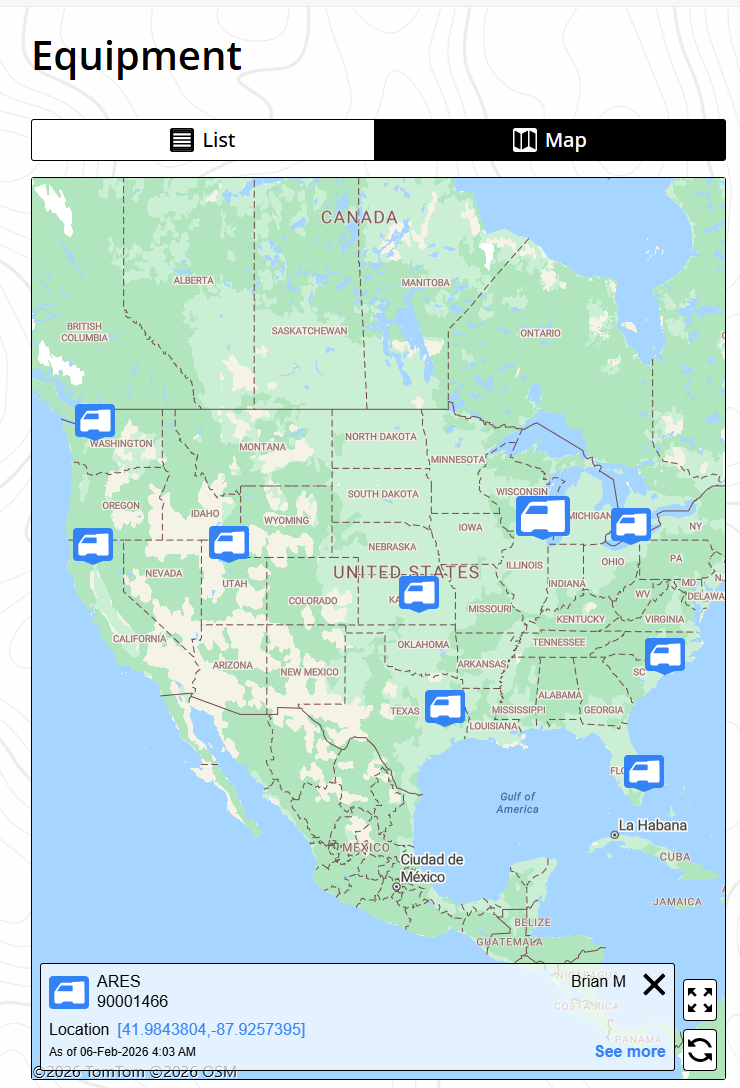
Digital Control Inc. is not responsible for reporting the locator as stolen to the authorities. The history of the locator's movement is not available on the myDCI portal.
Go to https://mydci.digital-control.com, and on the left pane, select Equipment.
Select the Ares locator with an active Trak-It subscription. The map displays the last known location of the locator with a time and date stamp.

On the equipment detail page, select the Options icon in the top right corner.

To make changes, you need a myDCI portal owner or manager account.
Select Mark as stolen, and then on the Mark as stolen screen, select the option you want:
- Silent alarm - Updates the GPS location every hour until the internal battery is depleted. There is no other notification.
- Lockout - In addition to GPS updates, you can prevent anyone from using the locator. The locator displays a lockout message.
You can change the option selected at any time or revert back to normal use with twice-daily tracking at any time.
Things You Should Know
There are three roles for myDCI.
Users can view subscriptions and equipment.
Managers and Owners can also update subscriptions, equipment, payment methods, and add, invite, or remove people.
Owners can delete the company account which will also cancel all subscriptions, remove access to data stored in the cloud, and delete all people. There needs to be at least one owner for the company.
- A company can have multiple owners and managers.
- Email notifications are sent to the person making purchases and to all owners.
- A company can have up to 10 open invitations at a time. You can resend or cancel an invitation.
- You can change a person's role from their record.
- If a person is removed from your company, they will no longer be able to access your myDCI portal.
Go to https://mydci.digital-control.com, and then on the left pane, select People.
- To add a person, at the top of the page, select Send invite.
- To update a person, select their record.
If a user has not activated their account, you can resend or delete the invitation.
Enter the person's email address and select a role *.
When you are in the portal and you need help, select "Help me choose".
You will receive a confirmation email with the details of your changes. If you don't receive it within a few minutes, please check your spam folder.
All owners will receive a confirmation email with the details of any changes made of the account.
Users can view subscriptions, equipment, and job data, and download DCI Apps.
Managers and Owners can also update subscriptions, equipment, and payment methods. They can also add, invite, or remove people.
Owners can also delete the company account, which will also cancel all subscriptions, remove access to data stored in the cloud, and delete all people. At least one owner is neededfor the company.
Contact
DCI USA
19625 62nd Ave S, Suite B103
Kent, WA USA 98032
DCI@digital-control.com
1.800.288.3610
1.425.251.0559
DCI Australia
2/9 Frinton Street Southport
Queensland 4215 Australia
DCI.Australia@digital-control.com
+61.7.5531.4283
+61.7.5531.2617
DCI China
368 Xingle Road Huacao Town
Minhang District Shanghai 201107, P.R.C
DCI.China@digital-control.com
+86.400.100.8708
+86.21.6432.5186
DCI Europe
Brueckenstraße 2
97828 Marktheidenfeld Germany
DCI.Europe@digital-control.com
+49.9391.810.6100
+49.9391.810.6109
DCI India
Unit No. 1022, 10th Floor DLF Tower B Jasola District Center
New Delhi 110025 India
DCI.India@digital-control.com
+91.11.4507.0444
+91.11.4507.0440
DCI Philippines
404-405 Energy Opt. Bldg Prime St, Madrigal Business Park 2
Alabang Muntinlupa City, Philippines 1780
DCI.Philippines@digital-control.com
(02)79802647
+632-79802647